

Chat and Rewrite
Chat and Rewrite are separate AI-assisted workflows. Chat works with the open project and returns conversation responses or explicit proposals. Rewrite works on text you select in the editor. Both require a connection and available credits.
Open Chat
Section titled “Open Chat”Tap the floating Chat button in the editor. Chat opens full screen.
Keep a page open before sending. The current page and revision provide the context needed to apply a page-edit proposal safely.
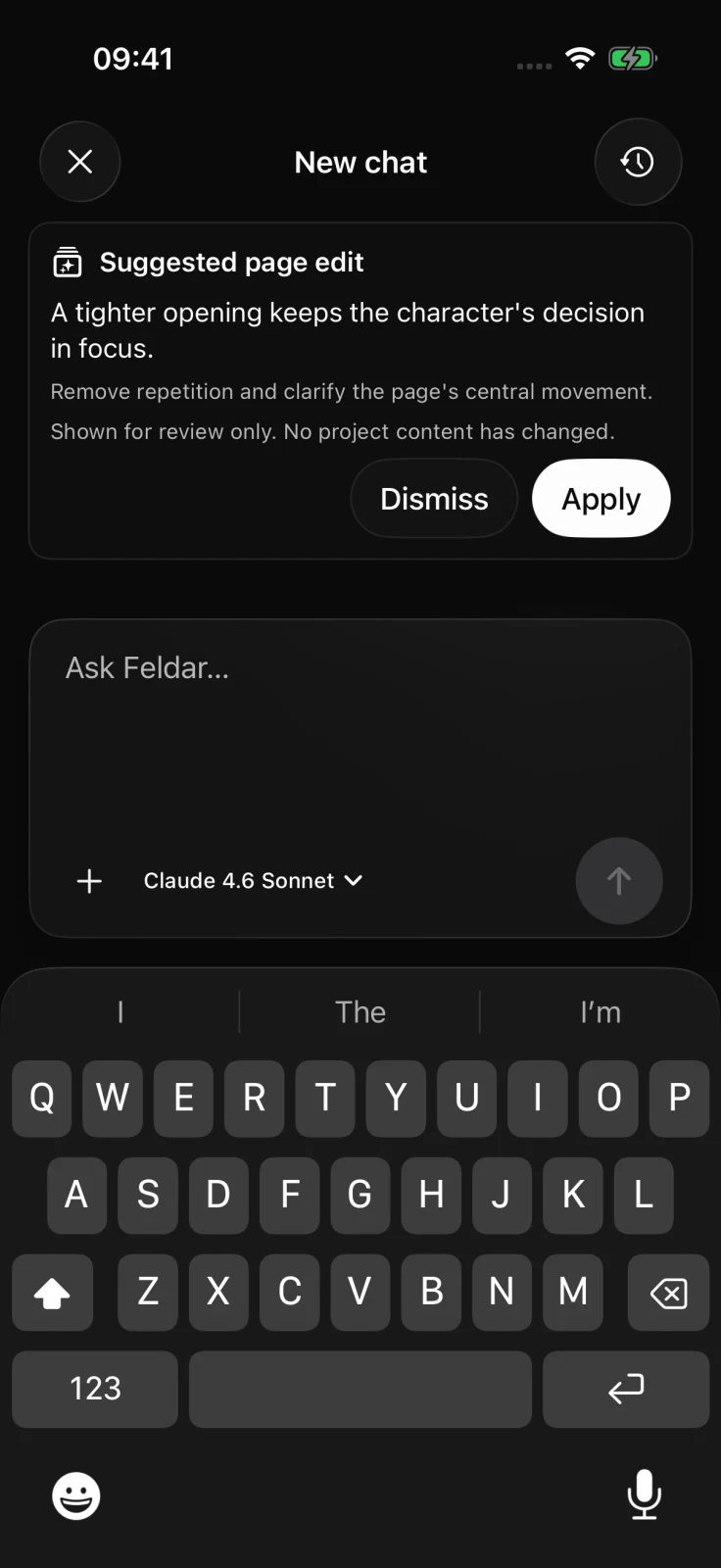
Choose a conversation, model, and reasoning
Section titled “Choose a conversation, model, and reasoning”Open the Choose conversation menu, then select a project conversation or choose New chat for a separate thread. Session switching and new-chat creation are paused while a response is streaming.
Use Model to choose from the catalog available to the account. Availability depends on the current Feldar catalog and plan. When the chosen model supports adjustable reasoning, the Reasoning control appears with the efforts that model accepts.
Attach context and send
Section titled “Attach context and send”- Tap Add files to choose a supported image or document.
- Remove any attachment that is not relevant before sending.
- Enter a focused request and tap Send.
- Use Stop if you no longer need the streaming response.
Feldar validates file type, readability, and size before upload. Image input also depends on the selected model. If an image is rejected, remove it or choose an available model that supports images instead of assuming it was analyzed.
See Chat for the supported attachment policy and guidance for long conversations.
Review proposals before applying them
Section titled “Review proposals before applying them”Chat can return review cards for:
- An edit to a specific page
- A replacement across matching project pages
- A new or updated Canvas card
No proposal changes the project until you choose its approval action. Review the proposed content and rationale, and make sure the intended page is open for a page edit. Then choose Apply, Insert, or Save card as shown. Choose Dismiss to leave the project unchanged.
A page edit can be applied only while its target page is open and still matches the revision Chat reviewed. If the page changed, ask Chat to make a new proposal instead of applying the stale one.
For proposal types, session behavior, and safety checks, see the canonical Chat guide.
Rewrite selected text
Section titled “Rewrite selected text”- Select the smallest passage that contains enough context.
- From the selection menu, choose Instruct, Polish, Deepen, or Enhance.
- Choose an operation. For Instruct, enter the change you want. Point-of-view and tense operations also ask for a target.
- Review the generated candidate and highlighted changes.
- Choose Accept to replace the selection, or Discard to remove that candidate.
Use Add versions to generate more alternatives, up to three candidates in the current comparison. You can move between candidates, regenerate the current one, or stop an in-progress generation.
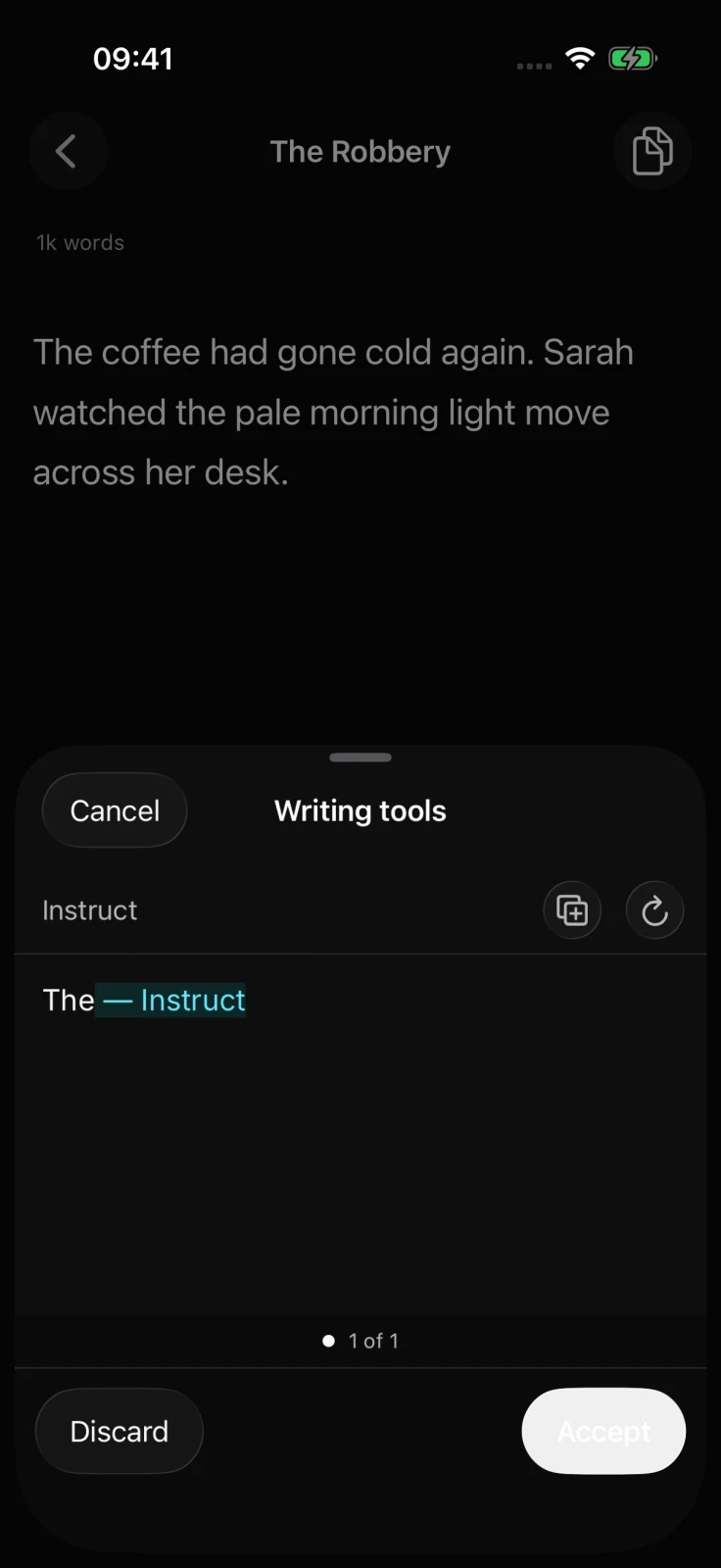
Do not edit or switch the page while reviewing a candidate. If the captured selection or document changed, Feldar refuses the stale replacement; select the passage again and start a new Rewrite.
See Rewrite for every operation and advice on choosing a useful selection. Check Credits when an AI action is unavailable.