

Dictation
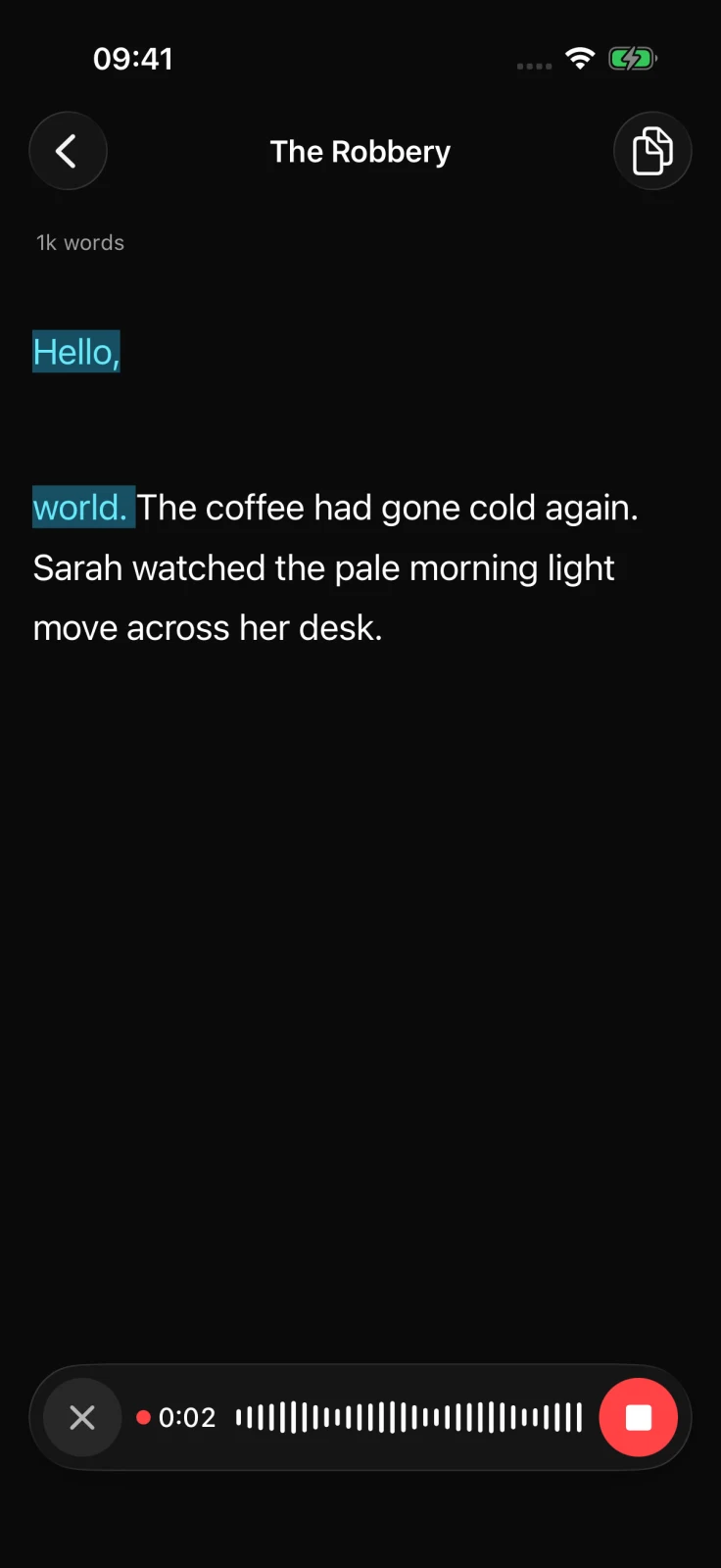
Dictation turns speech into text at the current editor cursor. Speech recognition runs on the device; accepted text then becomes ordinary page content and syncs through Feldar’s normal autosave.
Start dictating
Section titled “Start dictating”- Open a page and tap where the dictated text should begin.
- Expand the formatting controls if they are collapsed, then tap the microphone.
- Allow Speech Recognition and Microphone access when iOS asks.
- Wait for Listening, then speak.
- Tap Stop and let Feldar finish the transcript.
The first use for a language can show Downloading the Apple language pack. That download is an Apple speech asset; Feldar does not upload microphone audio for transcription.
Punctuation and paragraphs
Section titled “Punctuation and paragraphs”Feldar cleans common spoken English punctuation commands before insertion. You can say phrases such as:
- “comma,” “period” or “full stop,” “question mark,” and “exclamation mark”
- “semicolon” and “colon”
- “new line” and “new paragraph”
Review the result as you would any automated transcription, especially names, unusual words, and punctuation.
Finish and review
Section titled “Finish and review”On iPhone, finalized text is placed into the editor at the cursor captured when dictation began.
Do not move to another page while dictation is active. If the page changes and Feldar can no longer use the captured cursor safely, reopen dictation at the new insertion point.
Recover an interrupted transcript
Section titled “Recover an interrupted transcript”Feldar protects an in-progress transcript on the device. If capture is interrupted after text has been recognized, reopen Dictation on the same page to restore it. Compact iPhone layouts insert the adjusted recovered text when the recovery finishes.
Signing out removes account-scoped dictation recovery from that device.
Availability and permissions
Section titled “Availability and permissions”Dictation requires all of the following:
- A working microphone
- Microphone and Speech Recognition permission for Feldar
- Apple on-device recognition support for the current language and region
- An installed language pack when iOS requires one
If permission was denied, open the device’s Settings app and restore Feldar’s Microphone or Speech Recognition access. If the language pack cannot be installed, check the connection and available storage, then try again. Feldar does not fall back to cloud speech recognition when on-device recognition is unavailable.
For related editor behavior, see Pages and writing. For error-specific steps, see Mobile troubleshooting.