

Pages and writing
Each Feldar project contains pages. The native editor keeps the current page at the center while adapting page navigation and writing controls to the iPhone screen.
Open and manage pages on iPhone
Section titled “Open and manage pages on iPhone”- Open a project from the Library.
- Tap Pages in the navigation bar.
- Tap a page to open it, or tap the plus button to create an Untitled page.
- Use the ellipsis beside a page to rename or delete it.
The Pages sheet closes after you select or create a page. Deleting the current page opens the nearest remaining page when one exists.
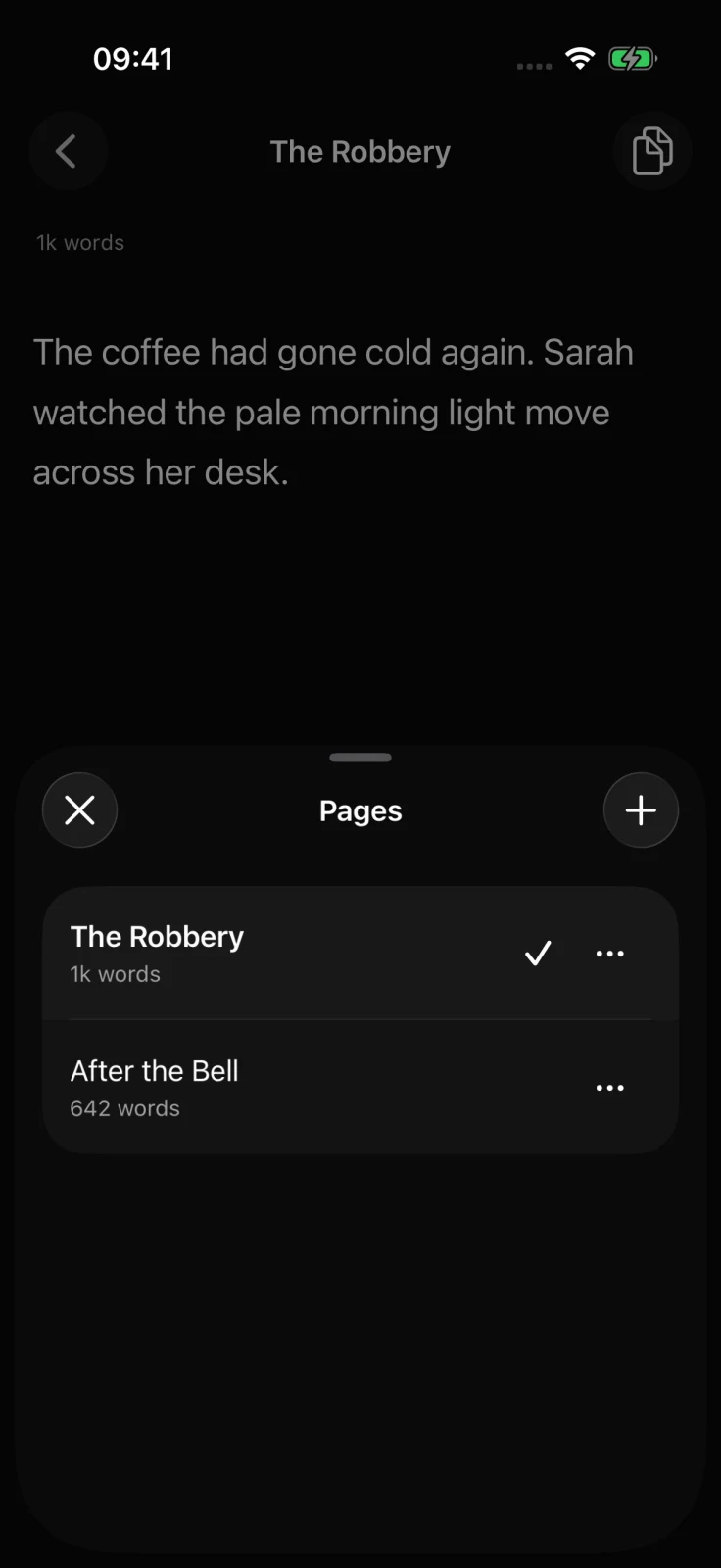
Pages remain in project order, and new pages are appended. The native app does not currently provide drag-and-drop page reordering.
Write and format text
Section titled “Write and format text”Tap in the page to place the cursor or select text. The editor supports:
- Paragraph, Heading 1, Heading 2, and Heading 3 styles
- Bold, italic, and strikethrough
- Bulleted lists, numbered lists, and block quotes
- Links applied to selected text
On a compact iPhone, expand the formatting control to open the scrollable vertical rail. It includes the microphone for dictation. The page title appears in navigation; rename it from Pages. Accessibility layouts can move the formatting actions to a bottom toolbar.
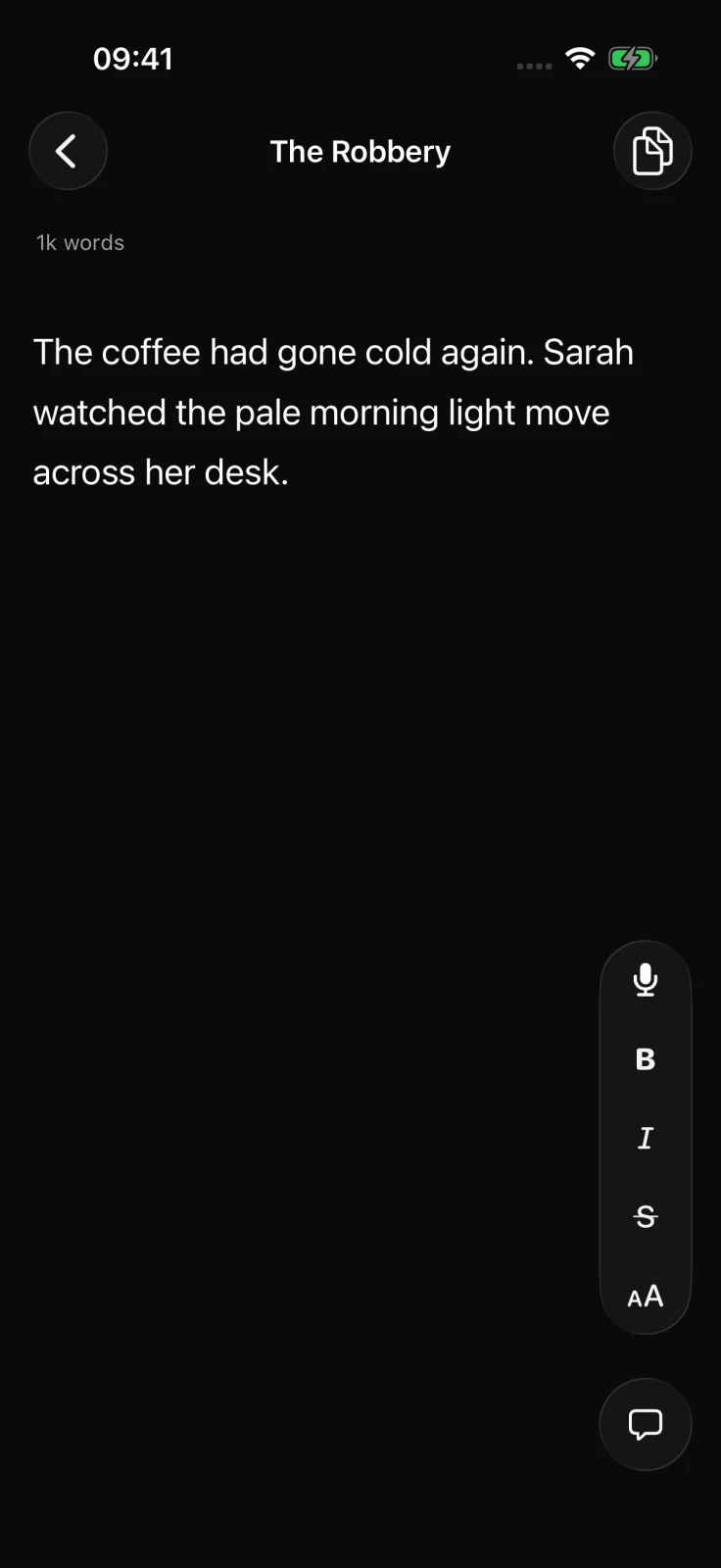
The full set of shared writing concepts is documented in Editor. Select text to access Rewrite, or place the cursor to dictate locally.
Save and recover a draft
Section titled “Save and recover a draft”Feldar automatically saves after changes. The editor can show these states:
- Saving — the latest change is waiting for or being sent to Feldar.
- Saved — the server accepted the change. Compact iPhone layouts may hide this completed state after saving.
- Saved on this device — the draft is protected in local recovery storage, but it has not yet synced to the server.
- Save failed — use Retry after the connection returns.
- Newer version available — this device’s draft conflicts with a newer server revision.
The app protects an edited draft locally before it goes into the background and retries transient save failures. This recovery is a safety mechanism, not a complete offline library: a project or page that has not already loaded may still require a connection.
If a protected draft exists when you reopen its page, Feldar restores or reconciles it with the server. Keep the app installed and do not sign out while you are relying on a local-only draft.
Resolve a conflict
Section titled “Resolve a conflict”If Newer version available appears, choose Review, then read both choices carefully:
- Keep this draft saves the text currently on this device over the reviewed server revision.
- Use newer version replaces the local editor with the newer server text.
Both drafts remain protected until you choose. If either copy is irreplaceable, copy it to a safe temporary location before resolving the conflict.
See Pages for page concepts shared with other Feldar surfaces and Mobile troubleshooting for failed-save recovery.