

Getting started on mobile
This guide covers Feldar’s open-beta native app for iPhone. The beta uses the same Feldar account and projects as the web and macOS apps, but some controls move to fit the available screen.
Sign in
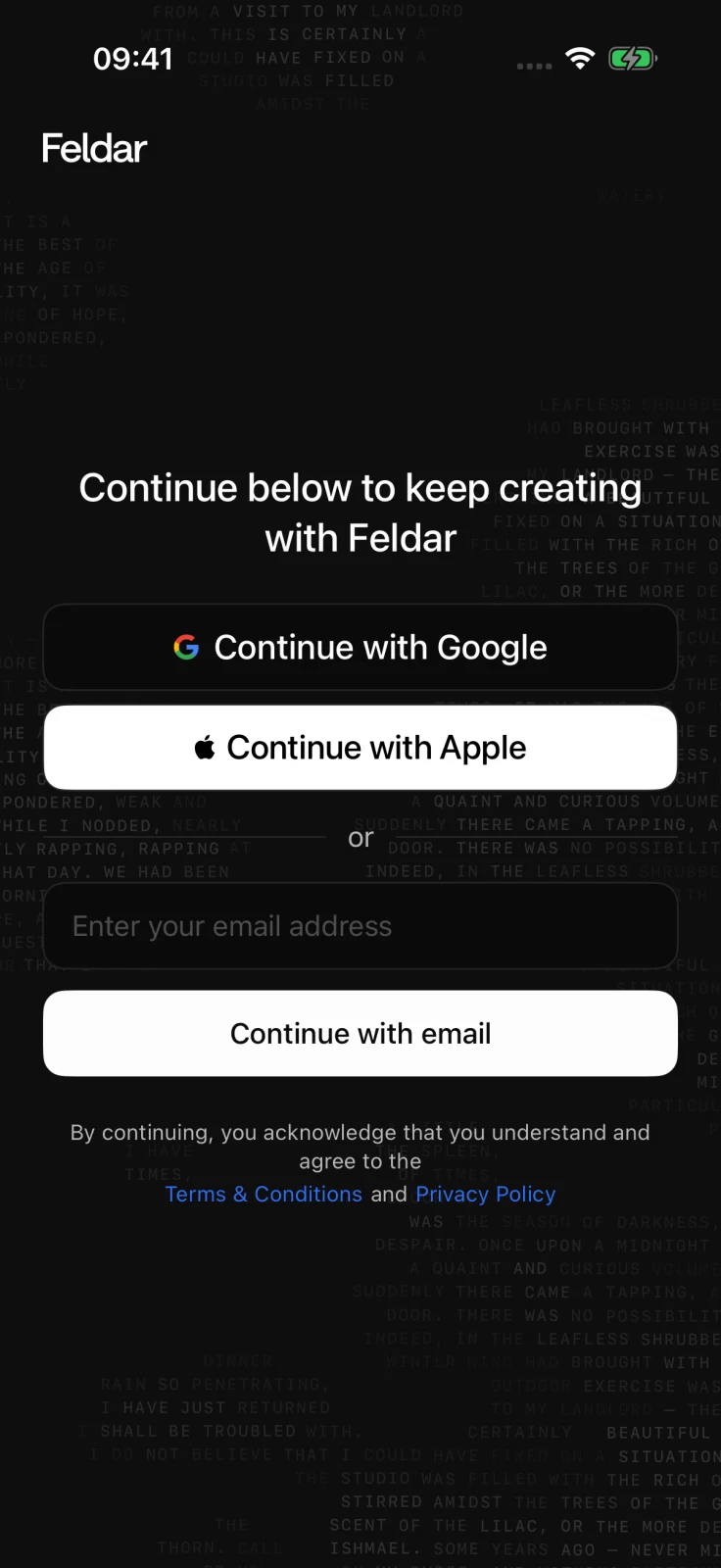
Section titled “Sign in”- On the welcome screen, choose Continue with Google or Continue with Apple when that option is available, or enter your email address and choose Continue with email.
- For email sign-in, enter the six-digit verification code sent to your inbox.
- If the email is connected to a password account, choose Continue with password from the code screen. Feldar may instead direct you back to the Google or Apple provider associated with the account.
Use Try sending again after the resend wait if a code does not arrive. Use Change email address if the address shown on the code screen is wrong.
See Sign in and account access for password recovery, email verification, and account-safety guidance.
Open or create a project
Section titled “Open or create a project”After sign-in, Feldar opens the Library:
- Tap a project in Pinned or Continue writing to return to it.
- Use Search to find a project by title or description.
- Use the plus button to create an Untitled Project and open it immediately.
The iPhone places the create button near the lower-right corner. Project actions are covered in Projects on mobile.
Start a page
Section titled “Start a page”When a project opens, select an existing page or create a new one. Tap in the editor and begin writing. Feldar saves changes automatically and shows the current word count and save state where space allows.
Before moving to another device, let Saving finish. If Feldar reports Saved on this device, the draft is protected locally but has not reached the server yet. Keep the app installed and use mobile save and recovery guidance before continuing elsewhere.
iPhone layout at a glance
Section titled “iPhone layout at a glance”- Pages opens as a sheet, Chat opens full screen, and editor tools use compact floating controls.
- Larger text: Accessibility text sizes can replace split views and floating controls with stacked navigation so controls have room to remain readable.
Next, learn how to manage projects, write and recover pages, or use Chat and Rewrite.