

Settings and account
Open Settings from the gear button in the Library header. The account name and email at the top identify the signed-in account; the mobile Settings screen does not edit those profile fields.
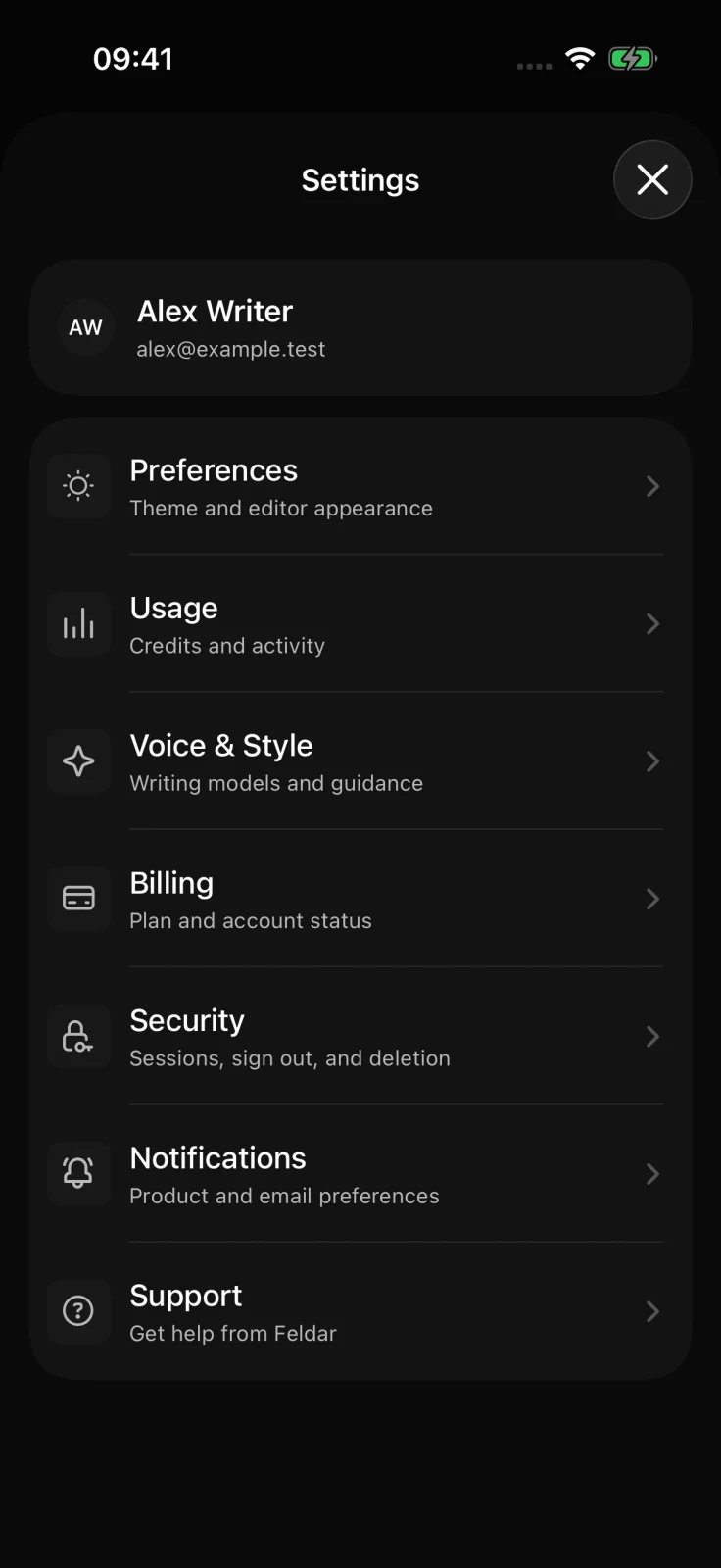
Preferences
Section titled “Preferences”Use Preferences to choose:
- Light, Dark, or System theme
- Editor font and font size
- Line height and text alignment
- Narrow, Comfort, Wide, or Expanded text width
The preview updates before you return to a page. Theme follows the Feldar account, while font, size, line height, alignment, and text width stay on this device. If an account-synced change fails, the app keeps the local value and offers Try again.
Usage and Voice & Style
Section titled “Usage and Voice & Style”Usage shows the current plan, available credits, credits used, request count, and charts by time and feature. Choose 7D, 30D, or 1Y, and filter to one model when model-level usage is available. See Credits for how AI actions affect the balance.
Voice & Style configures model, style, length, writing characteristics, and custom-instruction defaults for Caret Assist and Page Draft. The model catalog is account-dependent; locked or unavailable models cannot be selected. See Voice & Style for the meaning of each control. Project-specific voice-conditioning samples are managed on desktop.
Billing
Section titled “Billing”Billing shows your current subscription. Plan and payment-management actions appear only when external billing is available for your account and App Store storefront. The current mobile flow supports eligible US storefronts; other storefronts can show subscription information without purchase controls.
When the controls are available:
- Without a paid subscription, choose Change plan to review plans in the app. Selecting a plan starts checkout, which continues in a browser.
- With a paid subscription, choose Manage billing to open payment and subscription management in a browser.
Review the price and billing period before confirming a purchase.
Review Plans and billing before changing a subscription. When the browser flow returns to Feldar, the app refreshes billing information. If a return is interrupted, reopen Billing or Usage to check the current state. If no purchase control is shown, use Feldar in a desktop browser to review your account’s options.
Security and sign-out
Section titled “Security and sign-out”Security includes analytics consent, Log out of this device, and Delete account. Logging out ends the current mobile session and removes that account’s protected page and dictation recovery data from this device.
Before signing out, open any recently edited page and make sure Saving has finished. If the page says Saved on this device, restore the connection and sync it first; do not sign out while the only copy you need is local.
Notifications and support
Section titled “Notifications and support”Notification choices sync with the Feldar account, but delivery depends on the Feldar surface and available notification support. In Support, choose Email Feldar Support to start an email, or write to support@feldar.com. Never send a password or one-time verification code.
Delete your account
Section titled “Delete your account”Open Security → Delete account, read the confirmation sheet, and select
Delete account to continue. If verification is needed, follow the method
offered for your account. Verify and delete account completes the request
after successful verification; the native app does not ask you to type DELETE.
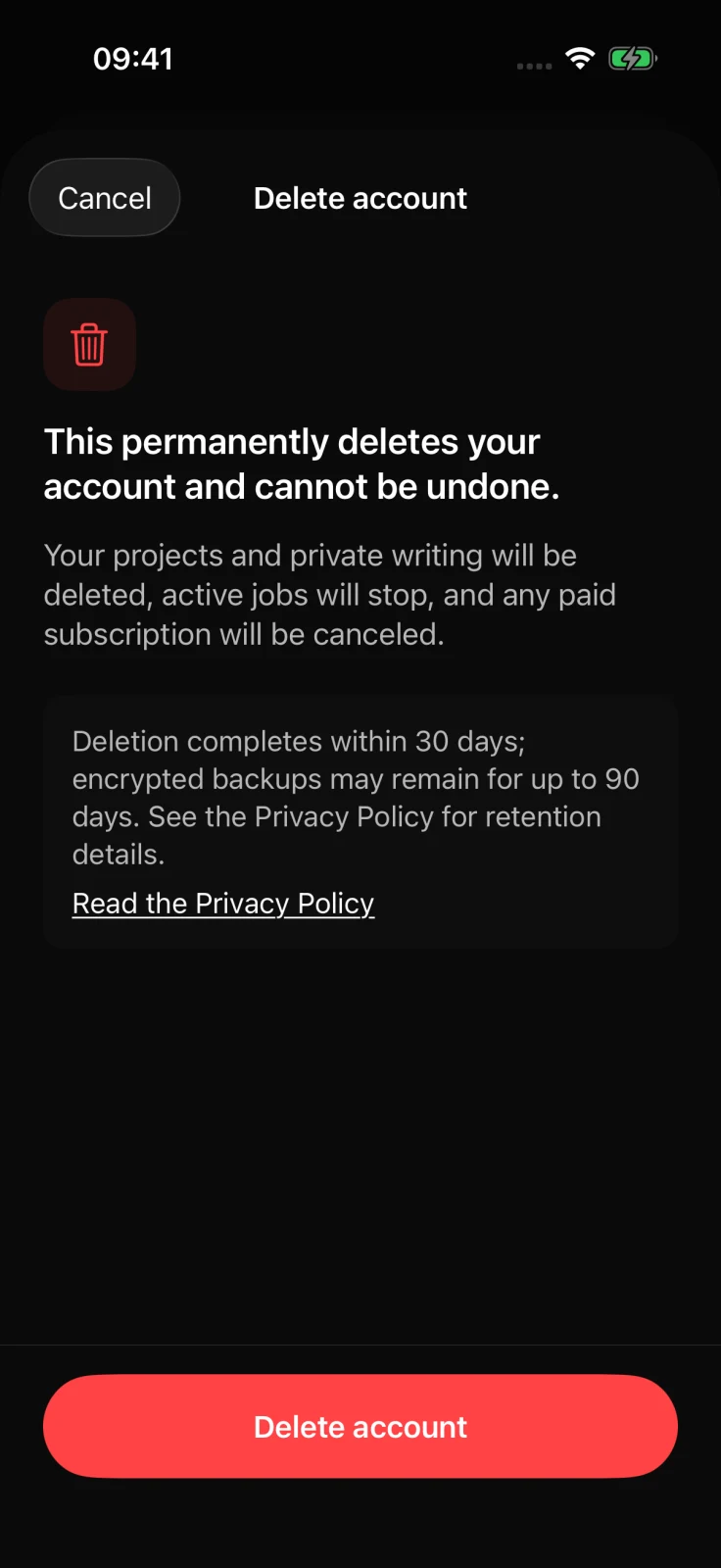
This affects your account across devices and cannot be undone. See Delete your account for the full workflow and a link to the authoritative retention policy.
For general account access, see Sign in and account access. For help that needs a response, see Contact support.